dlrSecured Identity Management Web Site
In addition to the dlrSecured Identity Management options in the XtreamService application, system administrators can also update dlrSecured settings using the dlrSecured web site. Using this web site, system administrators can monitor employee activity, generate new passwords for employees, and configure settings for verification methods.
Note - To set up a system administrator for the dlrSecured web site at dealerships where the ERA® System is used, contact the Reynolds and Reynolds Technical Assistance Center (TAC) at (800) 767-0080. At dealerships where the POWER System is used, contact the POWER Software Consultants at (888) 999-6348.
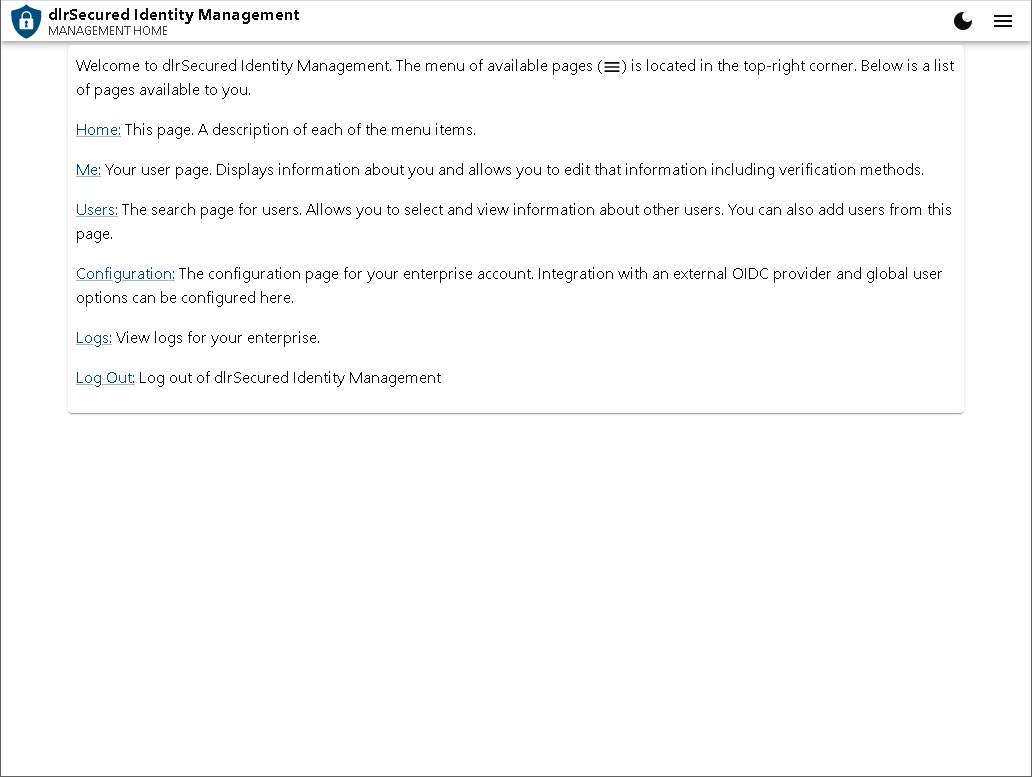
Note - The links available on this screen vary based on administrator permissions and include a description of each screen accessed by the corresponding link. In addition, the links that display can also be accessed by clicking the  (Menu) icon in the top right of the screen.
The following links can display on this screen.
-
Home. Click this link to display the Management Home screen.
-
Me. Click this link to display your dlrSecured record. Using this screen, you can define dlrSecured information for your personal record, such as updating the Email address linked to dlrSecured, adding verification methods, updating employee information, and adding or removing permission roles. For more information about dlrSecured records, refer to User Display Screen.
-
Users. Click this link to display a list of employees enrolled in dlrSecured. To view the profile for a specific employee, click the
 (View) icon. Once the dlrSecured record is accessed, the employee's dlrSecured information can be reviewed and updated. In addition, a new password can be generated for an employee using this screen. For more information about dlrSecured records, refer to User Display Screen.
 -
Configuration. Click this link to display the Configuration screen, where verification settings can be defined. For more information about this screen, refer to Configuration View Screen.
-
Logs. Click this link to display the Logs screen, where sign on activity, such as how many employees signed on using dlrSecured or updated their password for the day, displays.
-
Logout. Click this link to sign off of dlrSecured.
Click here for a list of products that may be mentioned in this help file.